
Appearance
Horizons of Focus
Mind Like Water already covers the lower three altitudes from David Allen's GTD model: Runway (Next Actions), 10K (Projects), and 20K (Areas). Horizons adds the upper three: 1–2 year Goals, 3–5 year Vision, and lifetime Purpose & Principles.
This is where you step back from today's queue and ask "what am I actually working toward?"
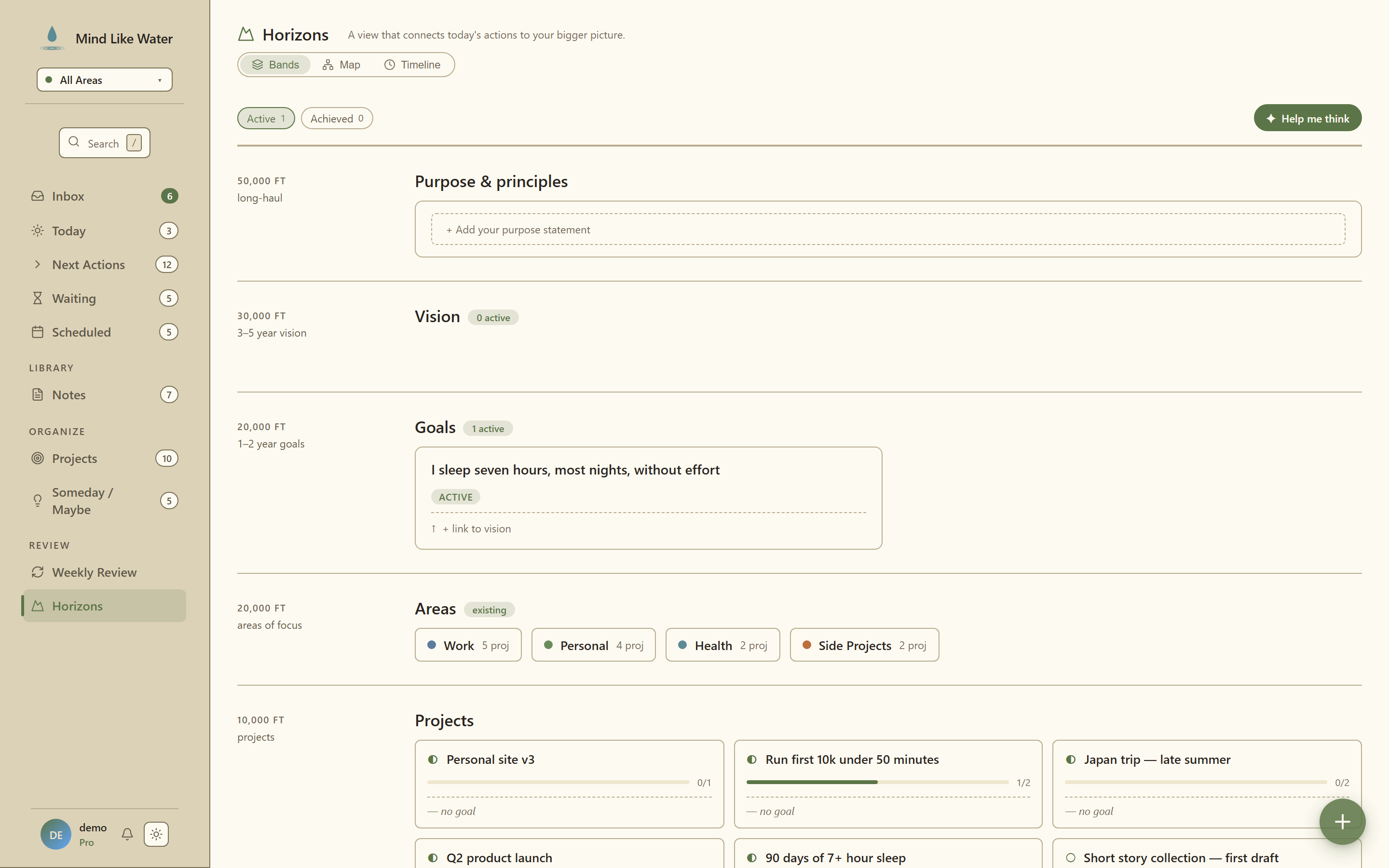 The full Horizons view, six altitude bands top-to-bottom from Purpose down to Runway.
Where to find it
Sidebar → Review → Horizons. Or press h from anywhere outside a text field.
What you'll see
Horizons is one scrollable column of altitude bands, top to bottom:
- Purpose. Your why, plus a short list of principles.
- Vision. 3–5 year statements of where you're heading.
- Goals. 1–2 year outcomes you're driving toward.
- Areas. Your existing Areas of Focus, shown as colored pills with counts.
- Projects. Active projects, each linked to a goal (or shown as orphan).
- Runway. A one-line summary by default, or task pills when you spotlight a goal.
First time you open it
If you've never written a Goal, Vision, or Purpose before, Horizons opens with a starter scaffold instead of a blank canvas. Three rows (Goal / Vision / Purpose), each labeled with its altitude window (1–2 years / 3–5 years / lifetime) and paired with a row of click-to-fill suggestion chips written in Allen's outcome voice. Pick one to seed your first entry; the chip text drops into the form for you to edit. The scaffold disappears as soon as you've created something at each altitude.
Adding things
Goals. Click the small + at the end of the Goal grid (it appears when you hover the grid). An inline form opens with three fields: title, target window, optional parent vision. Save and the new goal slots in.
The title placeholder reads "What does success look like?", David Allen's exact prompt from Making It All Work. The frame is outcome statements, not SMART checklists. "Be a more present father" is a valid goal in Horizons; you don't have to make every aspiration measurable.
Vision statements. + Add a vision statement row at the bottom of the Vision list. Title plus optional target year.
Purpose & principles. Click the Purpose card to write your purpose statement. Hover the principles row → + Add principle pill appears. Hover any existing principle → small × to delete.
All + affordances are deliberately quiet; they only fade in when your cursor is in the relevant area, so the Horizons page reads as a finished, beautiful artifact when you're just looking at what you've built.
AI assistance: outcome voice on demand
Three Pro-gated AI affordances help you phrase entries in David Allen's outcome-focusing voice. Click, wait about a second, pick from suggestions, or keep your own draft.
✦ Reword as outcome
Available on the New Goal form and the first-run scaffold creator. Click ✦ Reword as outcome, picture wild success after typing a draft. Three click-to-replace alternatives render in an accent-tinted panel: present-tense, vivid, picture-of-success phrasings tailored to the altitude (Goals get concrete-and-vivid; Vision gets atmospheric-life-texture; Purpose gets short-mantra-like). Pick one to overwrite your draft, or hit Keep mine to dismiss.
✦ Suggest a window
Available under the Target window field on the New Goal form. Click ✦ Suggest a window based on the title and three target-window phrasings render in shape variants:
- Calendar-anchored ("By Q3 2026", "End of 2026")
- Qualitative life-state ("Before our second child is born")
- Dimensional stretch ("12 months from today")
✦ Help me think
The largest of the three: a right-side drawer that walks you through Allen's Natural Planning Model on a single goal, one step at a time (Purpose → Vision → Brainstorm → Organize → Next action). Available from:
- The
✦ Help me think this throughbutton at the bottom of the New Goal form - A
✦ Help me thinkbutton next to Cancel/Save on the existing-goal edit panel
The drawer asks one question per step, you answer, the model summarizes at the end, and the notes save with the goal when you click Save goal. Stateless on the server (no abandoned-session pollution), no daily cap.
Pro gate. All three AI features check Pro tier server-side. Free users see an inline "Reword is a Pro feature" hint instead of a hard error. The suggestion never lands, but the rest of the form is untouched.
Linking a goal to an Area of Focus
Every goal can have an Area chip (Health, Career, Family, etc.). Set it from the goal form or edit panel. The link drives the Area chip filters in the chip bar and groups goals visually by their Area in the Map view.
Spotlighting a goal
Click any goal card to spotlight it. The connected Vision lights up, unconnected Goals dim, and the Areas / Projects / Runway bands narrow to just what supports the spotlit goal. The runway band switches from a one-line summary to actual task pills: the specific next actions rolling up to that goal.
Release by clicking the same goal again, clicking the ✕ on the spotlight pill at top, or pressing Esc.
Filtering
The chip bar above the bands narrows what's visible:
- Status chips. Active (default on), Achieved (off). Click to toggle.
- Area chips. One per area. Click to scope Goals (and everything below them) to projects in that area.
Filters and spotlight stack: chip-filter to "Health", then spotlight a specific Health goal to drill in.
Map view
View map in the page header swaps the band layout for a top-down hierarchy: Purpose at the top fanning down through Visions → Goals → Projects, with each Goal also chip-linked to its Area of Focus. Click any node to spotlight its branch. Ancestors and descendants stay bright, everything else dims so you can read a single rollup at a glance.
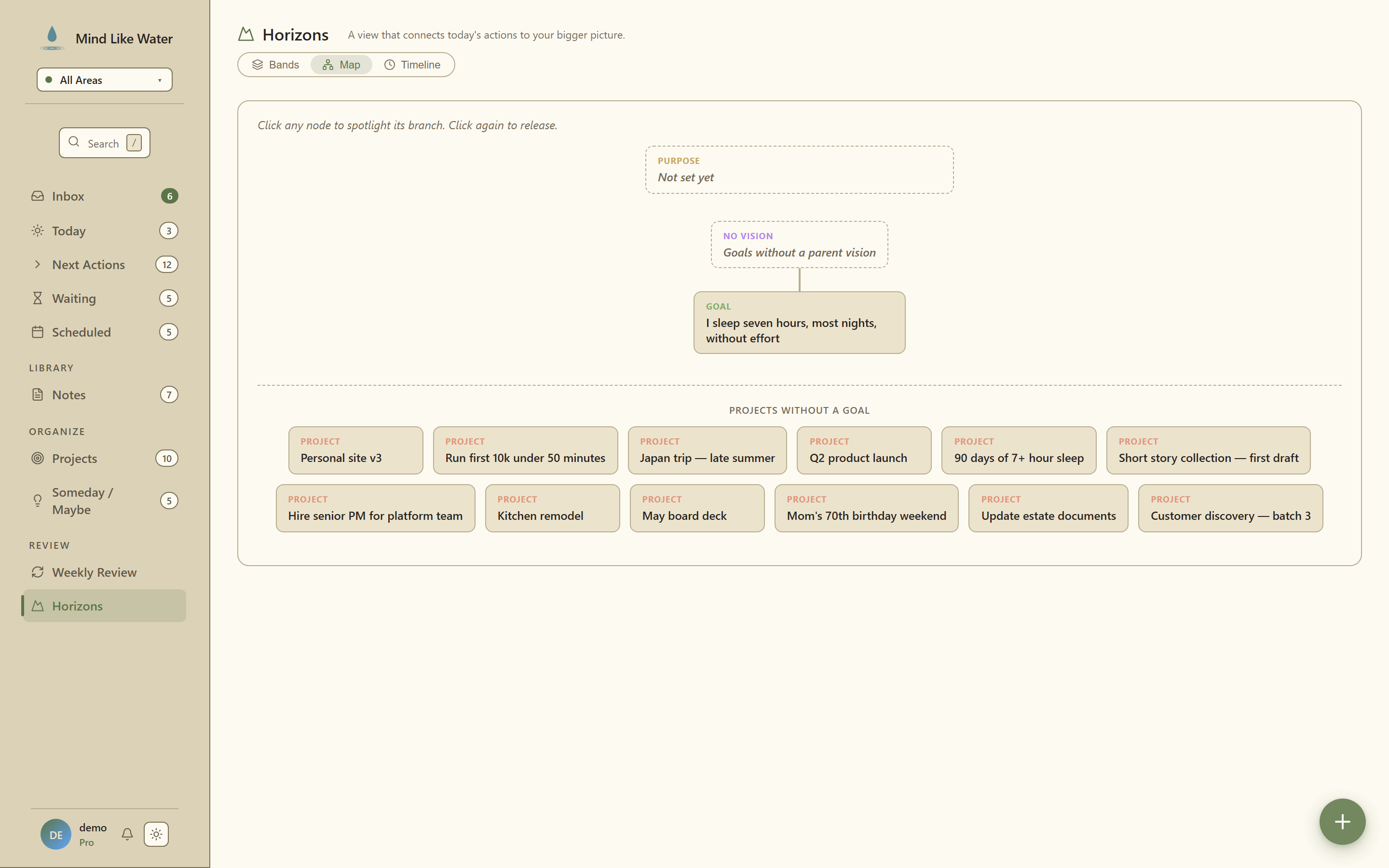 Map view: a top-down hierarchy of the upper altitudes. Click any node to spotlight its branch.
Map view shows active entities only; Achieved/Dropped goals live in the Timeline so the chart stays readable.
Timeline: the archive
View timeline in the page header opens the archive. Every goal you've achieved, every vision you've retired, every moment you've pinned, preserved in a chronological view, color-coded by kind (Vision purple, Goal moss, Purpose amber).
Snapshots are taken automatically when:
- A goal moves to achieved or dropped (captures the final state)
- A vision is retired (preserves the previous text)
📌 Pin this moment
A small pin button on the Horizons header (and inside each spotlight) lets you stamp the current state of your goals into the Timeline without waiting for a status change. Useful for marking the start of a new quarter, the day after a planning offsite, or anything you want to remember.
The Timeline is the answer to "what was I working toward when…?", designed so you can look back at your old visions twenty years from now.
Still on the roadmap
The current build covers Phase 1 (the manual stack) plus the three Phase 2 AI affordances above. A few items remain in flight:
- Weekly Review integration. A "Climb to 30,000 ft" step that confirms what's still active and flags drift.
- Backfill suggestions. AI clusters your existing projects and proposes goals you're already implicitly working toward.
- Orphan project linking. AI suggests upward links for projects added without a goal.
- Year-end auto-snapshot. Dec 31 cron that captures the year's standing state automatically.
- Dim/hide spotlight preference. Settings toggle to control how aggressively unrelated bands fade when a goal is spotlit.