
Appearance
Inbox
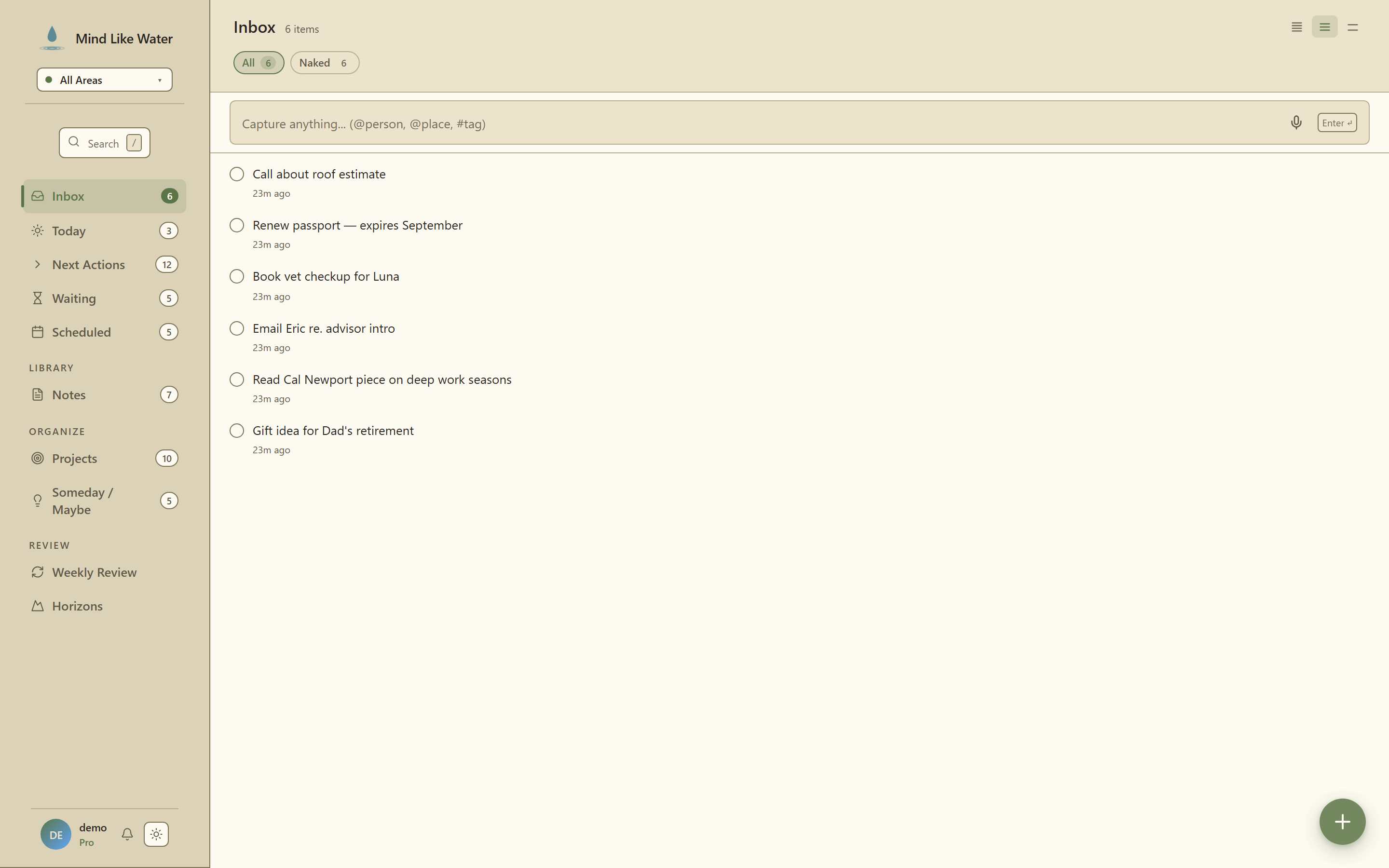 Inbox view: the always-visible capture bar at the top, then a flat list of unprocessed items waiting for triage.
The Inbox is where unprocessed captures land. Anything you haven't classified yet sits here waiting for triage. It's the holding pen between "I had a thought" and "this is now part of my system."
For the GTD-flow side of how to process the Inbox (clarify, organize, defer), see Capture and Clarify. This page covers the Inbox as a feature surface: how the view works, the always-visible capture bar, and the keyboard interactions.
Jumping there
Press i anywhere in MLW. Inbox shows in the sidebar with a count badge. The count is "things waiting for triage" (tasks with status='inbox' plus notes flagged as inbox).
The always-visible capture bar
The top of the Inbox view has an input that's always focusable. It's a faster path than Quick Capture (n) when all you want is a title.
- Type, Enter. Saves a task to Inbox, keeps the input focused for the next one.
- Esc. Clears what you've typed.
- Inline syntax:
#tag,@person,@place. Same parser as the Quick Capture title field, minus the chip-related parts.
If your fingers are already typing, this is the fastest capture path in the app.
What lives in Inbox
Tasks and notes that haven't been classified. Both render as rows in the same list:
- Tasks. Checkbox + title + tags.
- Notes. Outline icon + title + first-line preview.
Inbox is the only view where notes and tasks coexist. Everywhere else, Notes lives in the Library section.
Triaging items
The four most common moves on a selected item:
- Assign to a project. Opens the breadcrumb picker, pick a project (or area). Auto-promotes status from
inboxtoactive. - Mark as someday.
,sthen "someday" in the status picker, or click the status chip. Item leaves Inbox, lands in Someday/Maybe. - Complete it directly.
con a selected task. Useful for two-minute-rule items that are faster done than triaged. - Delete. For captures that turned out to be noise. Opens the destructive confirm.
File and continue
When you've finished clarifying an inbox task in the detail pane, click File and continue (in the detail pane's overflow menu, or as the primary action after assigning a project). MLW commits the change and advances the detail pane to the next remaining inbox task so you can keep flowing through a triage session without manually clicking the next item. When Inbox is empty, the pane closes and you get an "Inbox cleared." toast.
This is the GTD triage rhythm shipped as a single click.
Filtering
Inbox uses the same chip rail as other task views:
- All chip. Total count.
- Due chip. Tasks with a hard deadline today (rare in Inbox; usually means a captured item already has a date).
- Area chips. Filter by Area of Focus, only renders when at least 2 distinct areas are present in your inbox.
- ⏱ Time chip. Duration filter (
≤15m / ≤30m / ≤1h / etc.); useful for "I have 15 minutes between meetings, what can I clear from inbox?"
Sources of Inbox items
Items land in Inbox from:
- Quick Capture (
n). Anything you don't tab through to set a project lands here. - Voice capture (
Shift+N). Extracted task candidates that you saved to Inbox. - Email capture. Emails sent to your private capture address (feature page).
- Inbox capture bar. The always-visible input at the top of this view.
- Mobile share-target. Sharing text/URL to MLW from another app on a PWA-installed device.
If something's in Inbox and you don't know where it came from, the row's relative timestamp ("2h ago", "3d ago") tells you when it was captured.
Keyboard shortcuts
| Shortcut | Action |
|---|---|
i | Jump to Inbox |
↑ / ↓ | Move selection |
Enter | Open the selected item's detail pane |
c | Complete the selected task |
,p | Assign to a project |
,s | Change status |
,a | Change area |
In the capture bar: Enter to save, Esc to clear |
See the full keyboard shortcuts page for the rest.
What MLW doesn't do (yet)
- No bulk triage. You can't multi-select items and assign them all to a project in one shot. We'd rather you triage one at a time so each gets a real second of thought (the GTD point).
- No "auto-classify" AI. Claude doesn't try to guess where Inbox items belong. The triage step is the discipline; automating it defeats the purpose.
- No Inbox quotas. We don't nag you about Inbox count. If it's piling up, the weekly review will surface that for you.
Related
- Quick Capture. The
nmodal that fills Inbox. - Email capture. Emails-to-tasks all land here.
- Clarify. The GTD-flow page on processing what's in Inbox.