
Appearance
Notes & references
The library of durable knowledge alongside your tasks. Reference material, meeting notes, decisions, research, snippets, anything that isn't an action.
Press l to open Notes (when you're not already typing in a field).
The Notes view: Tags and Notes modes
The list pane has a Tags / Notes toggle at the top.
- Tags mode (default). A navigable tree of every tag you've used. Tags are grouped by Area of Focus, with notes appearing inline beneath their most-specific tag. Counts on each row tell you how much lives there.
- Notes mode. A flat, filterable list. Sorted by most recently updated.
Switching modes is automatic in most cases:
- Click a tag in the tree → switches to Notes mode, filtered to that tag and its descendants (clicking Finance shows everything in Finance/Options/etc.).
- Type in the search box → pops you into Notes mode immediately.
- Clear the last filter chip → returns you to Tags mode (whatever you were drilling into is gone, so you go back to the overview).
There's also a back-to-tags chevron in Notes mode whenever a tag/person filter is active.
The shortcuts strip
Above the tag tree you'll see a small list of one-click shortcuts:
- All notes. Every note in the current Area scope.
- Untagged. Notes with no tags, no Area, and no daily date (orphans worth filing).
- Daily. Every daily page.
- Pinned filters. Saved combinations you've pinned.
To pin the current filter, set up the chips you want in Notes mode, then return to Tags mode and click + Pin current. Give it a name. It now lives in the shortcut strip forever (until you click the × to delete it).
Search and create
At the very top of the list pane:
- Search box. Searches title and body, live. Typing pops you into Notes mode automatically.
- + button. Creates a fresh note and opens it in the detail pane with the title focused.
Tag tree drag-and-drop
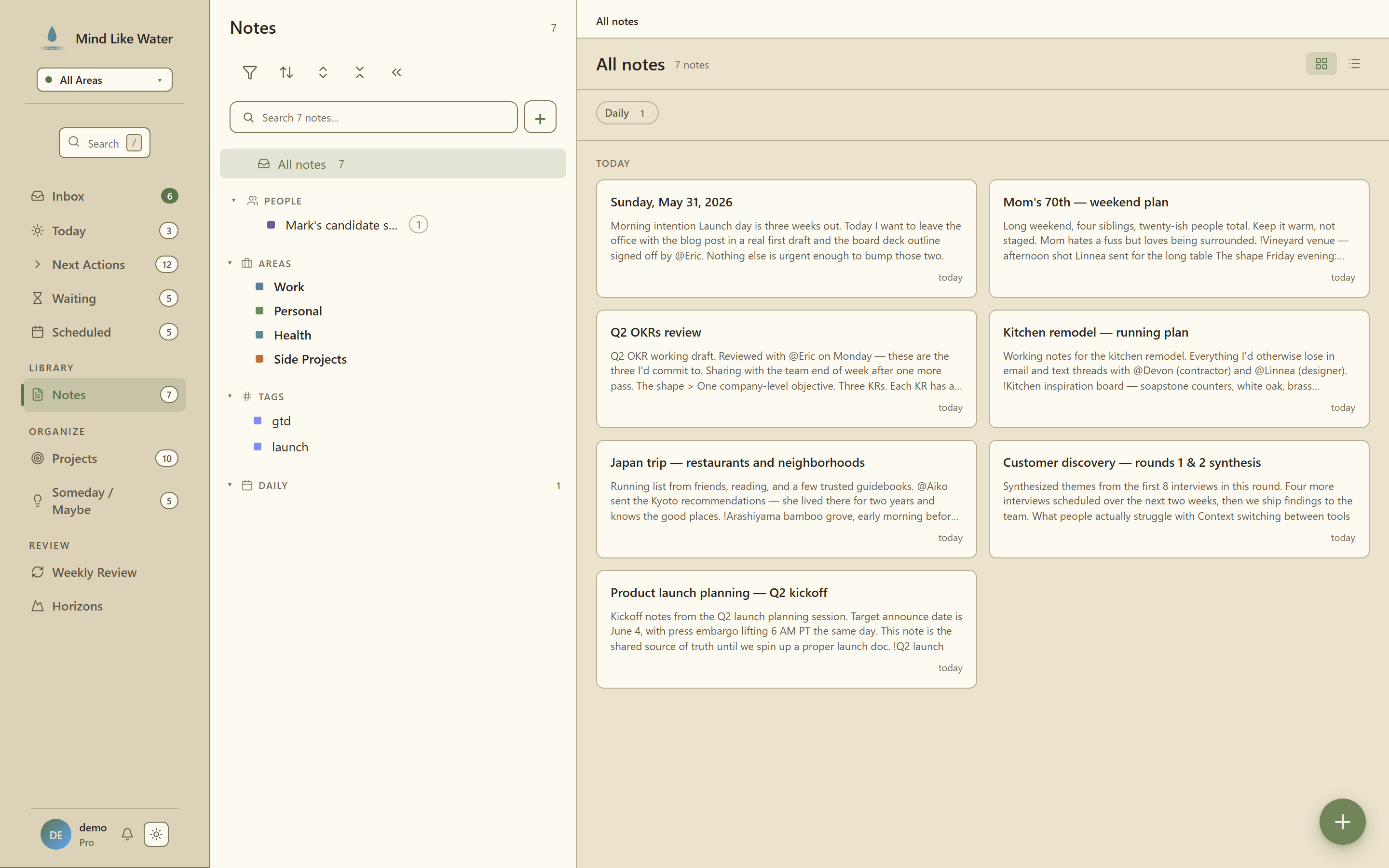 The Notes view's tag tree, grouped by Area of Focus, with the list pane on the right.
The tree is rearrangeable. On desktop, drag with the mouse; on mobile, long-press to start a drag.
- Drag a tag onto another tag → makes it a sub-tag (reparents under the new parent)
- Drag a tag onto an Area row → assigns the tag to that Area and promotes it to a root tag
- Drag a tag onto the Tags section header → unaffiliates it from any Area
- Drag a note onto a tag → adds that tag to the note (one-step alternative to opening the detail pane and using the tag picker)
Tags belong to an Area of Focus. When the sidebar is filtered to a specific Area, only tags (and notes) in that Area show.
Create, rename, or delete tags inline
You don't need to leave the Notes view to manage tags. Hover any tag row in the tree and three small icons fade in to the right of the name:
- + add a sub-tag under this tag. An input renders as a child row, autofocused. Enter to commit, Esc to cancel. New sub-tags inherit the parent's category.
- ✎ (pencil) rename. The name swaps to an input in place. Enter to commit, Esc to cancel. The rename propagates to every task and note that uses the tag. No broken references.
- 🗑 (trash) delete. A confirm dialog shows the note count and sub-tag count before destroying. Tasks and notes keep existing; they just lose the tag.
The existing emoji/icon picker (the small icon to the left of the tag name) is unchanged; that's for changing the tag's icon, not its name.
Settings → Tags is still the best place for bulk operations or category changes; the inline flow is for the common case of "I need this tag right now."
Auto-select the top note
When you switch into Notes list mode (by clicking a tag in the tree, picking a shortcut like Untagged or Daily, or applying a pinned filter), MLW automatically opens the top note in the detail pane instead of leaving the editor blank. There's always something to read while you scan the list.
If a note is already open and it's still in the filtered set after you narrow the filter, the selection sticks. MLW won't yank you off a note you're reading just because you turned on another chip.
Tag emojis
When you create a tag, MLW suggests an emoji based on the tag name. Click the emoji on any tree row to change it via the inline picker.
Rich-text editor
Notes use a full rich-text editor: headings, bold/italic, bullet and numbered lists, task lists (checkboxes), code blocks, quotes, horizontal rules.
Type / at the start of a line to open the slash command menu for inserting elements.
Links
Three ways to add a URL as a real link:
- Paste a URL. If text is selected, the selection becomes the link text. If nothing's selected, the URL itself is linkified.
- Type a URL. Bare URLs auto-linkify as soon as you finish typing.
Cmd/Ctrl + K. Prompts for a URL and wraps the current selection. PressCmd+Kon an existing link to edit it, or submit an empty value to remove it.
Clicking a link inside the editor won't navigate (would interrupt writing). Cmd/Ctrl + click opens it in a new tab.
Markdown syntax also works: typing [text](url) saves as a link.
Images
Three ways to add an image:
- Paste a screenshot (⌘V). The image uploads to your account and drops in at the cursor.
- Drag a file from your OS. Drop on the editor; uploads and embeds.
/imageslash command. Opens a dialog where you can either paste an external URL or pick a local file.
Limits: 10 MB per file. Supported: jpg, png, gif, webp, avif.
Images you upload are stored in your Cloud account (same region as your tasks). Pasting an external image URL just references it; MLW doesn't re-host external images.
Floating format toolbar
Select any text and a small toolbar appears with Bold / Italic / Strike / Code / Link buttons. Standard editor pattern, no mouse-to-menu trip required.
Foldable headings
Hover any heading (H1, H2, H3) → a small chevron fades in to the left of the text. Click it to collapse every block between that heading and the next heading of equal-or-higher level. (Folding an H2 collapses everything up to the next H2 or H1, etc.)
Folded sections keep their chevron visible (rotated to point right) so the collapsed state is legible at a glance without hover-hunting every heading. Click again to unfold.
Tasks inside a note
Type /task at the start of a line to drop a real task into the note. It renders as a clickable checkable chip inline with your prose, and it also appears everywhere else a task lives: Today, Next Actions, the relevant project page, the inbox if it landed there.
- Check it off from the note → completes the task everywhere.
- Check it off from Today → the chip in the note updates.
- Rename the chip → the task title updates.
- Delete the task elsewhere → the chip in the note dangles (you can re-create it from the same line).
This is the "notes and tasks as equals" model: same row, two surfaces, always in sync. No copy-paste between a notes app and a tasks app.
Tables
/table inserts a 3×3 table with a header row.
- Type in a cell. Click in and start typing.
Tabjumps to the next cell. - Resize columns. Hover the right edge of a column; the divider becomes draggable.
- Add or delete rows/columns. Click into any cell. A toolbar pops up with
+Row↑,+Row↓,−Row,+Col←,+Col→,−Col. - Toggle header row.
Hbutton in the same toolbar. - Toggle full-width.
↔button. Tables default to content-width (only as wide as their data) so they sit comfortably in flowing text. Flip to full-width for a prominent comparison or data block. - Delete the whole table.
×button (asks to confirm).
Inline mentions: @, #, and [[ ]]
Three popup pickers fire as you type in the body, each for a different kind of link.
@ for people, tasks, projects
Type @ and start typing a name. The picker surfaces (in this order):
- People. Existing person tags. People are listed first because that's what
@means in most apps. - Tasks and projects. For linking actions and outcomes.
- Create "name". Appears when nothing in the list matches what you typed. Picking it creates a brand-new person tag.
Clicking an @person mention anywhere in the app opens the person sheet, a side-panel showing every waiting task, daily-page paragraph, and note connected to that person.
# for non-person tags
Type # and start typing. The picker shows existing tags (excluding people; those use @). If your text doesn't match an existing tag, a "Create '...'" option appears at the bottom. Picking it creates the tag and attaches it to the current note.
[[ ]] for wiki-links to other notes
Type [[Note Title]] inline to link to another note. On save, the text renders as a clickable teal link.
- Click a wiki-link → opens the referenced note. If no note with that exact title exists yet, MLW creates a blank one and opens it.
- Rename-safe: when you rename a note, every
[[Old Title]]reference in other notes' bodies auto-rewrites to[[New Title]](case-insensitive match, casing normalizes to the new title). Same behavior as Obsidian's "Automatically update internal links." - Delete behavior: matches Obsidian. If you delete a note,
[[DeletedTitle]]references in other notes stay put and render in the dangling (amber) style. Clicking a dangling link creates a fresh blank note with that title. - Backlinks: at the bottom of every note, a "Referenced by" section lists every other note that wiki-links to this one. Click a row to jump.
- Show context (toggle in the section header): expands each backlink to show the actual line of text where the link appears, plus the chain of headings above it for orientation. Off by default. Flip it on once and your preference sticks across notes and sessions. If a note links to the current one in several places, all of them show, capped at five with a "+ N more" indicator.
Linking notes to tasks and projects
When you @mention a task or project in a note:
- The mentioned task/project now shows this note in its Related Notes section
- You can click the mention to jump to that task or project
- When the task is deleted or renamed, the mention stays coherent (it's referenced by ID, not by text)
Two entry points get this automatically:
- The Task Detail pane shows a "Referenced in" section listing every note that mentions this task
- The Project Detail page shows "Related Notes"; notes that mention the project or any of its tasks
Areas on notes
Notes can be assigned an Area of Focus. When the sidebar is filtered to a specific area, only notes in that area show.
Daily pages vs cloud notes
There's a distinct type of note for daily journaling. See Daily pages. Cloud notes are durable reference; daily pages are timestamped.
The sample "Welcome to Mind Like Water" and "GTD in 5 minutes" notes
When your account was created, we seeded two starter notes in your library. Both are flagged as sample content. You can delete them anytime from Settings → Sample Content.
Tips
- Title your notes with searchable phrases. "March 2026 offsite prep" beats "notes."
- Link generously. Every note that mentions a project strengthens the web. When you open the project months later, those notes are right there.
- Pin the filters you actually use. "Untagged + Work" or "@linda + this quarter". Five seconds to set up, one click forever after.
- Don't use notes as tasks. If it's actionable, create a task instead (or use a task list inside the note). Notes are for stable reference.
Next: Daily pages →
Related
- Daily pages. A per-date note that ties to journaling rituals.
- Tags. The tag tree in the Notes view organizes everything.
- Search. Find any note by content.