
Appearance
What's new
The big changes you should know about, newest first.
July 2026: Text size, email AI triage, and polish
- Export to Obsidian. Settings → Profile → Export to Obsidian sends your notes and daily pages into a vault as markdown — YAML frontmatter, real Obsidian tags, native wikilinks. Incremental: each run only exports what changed since the last one. On Chrome/Edge it writes straight into a folder you pick once; elsewhere it downloads a zip. Full guide →
- Text size controls. Settings → Preferences → Text size scales the whole app across four steps (Default / Large / Larger / Largest), with a separate control for the sidebar so your navigation can stay compact while content grows. Dialogs and popovers scale along with everything else.
- AI triage for email captures (Pro). Tasks that arrive via email capture now get the same AI metadata suggestions as typed and voice captures — proposed dates, area, and tags appear as dashed chips when you open the task.
- Today shows task status. In the Today view, tasks that are Waiting or Scheduled now carry a small status pill next to the title. Today's sections are date-based (Overdue / Due Today / In Focus), so the pill tells you what state a task is in without opening it.
- AI Weekly Review is date-stamped. The AI Summary shows when it was generated (today / yesterday / a date), so a cached summary can't masquerade as a fresh one.
- Checklist renaming fixed. Fast typing in a checklist name or item no longer drops characters mid-word.
- Title editing starts at the end. Clicking a task title in the detail pane places the cursor at the end of the text instead of selecting the whole title, so a stray keystroke can't wipe it.
May 2026: Horizons of Focus
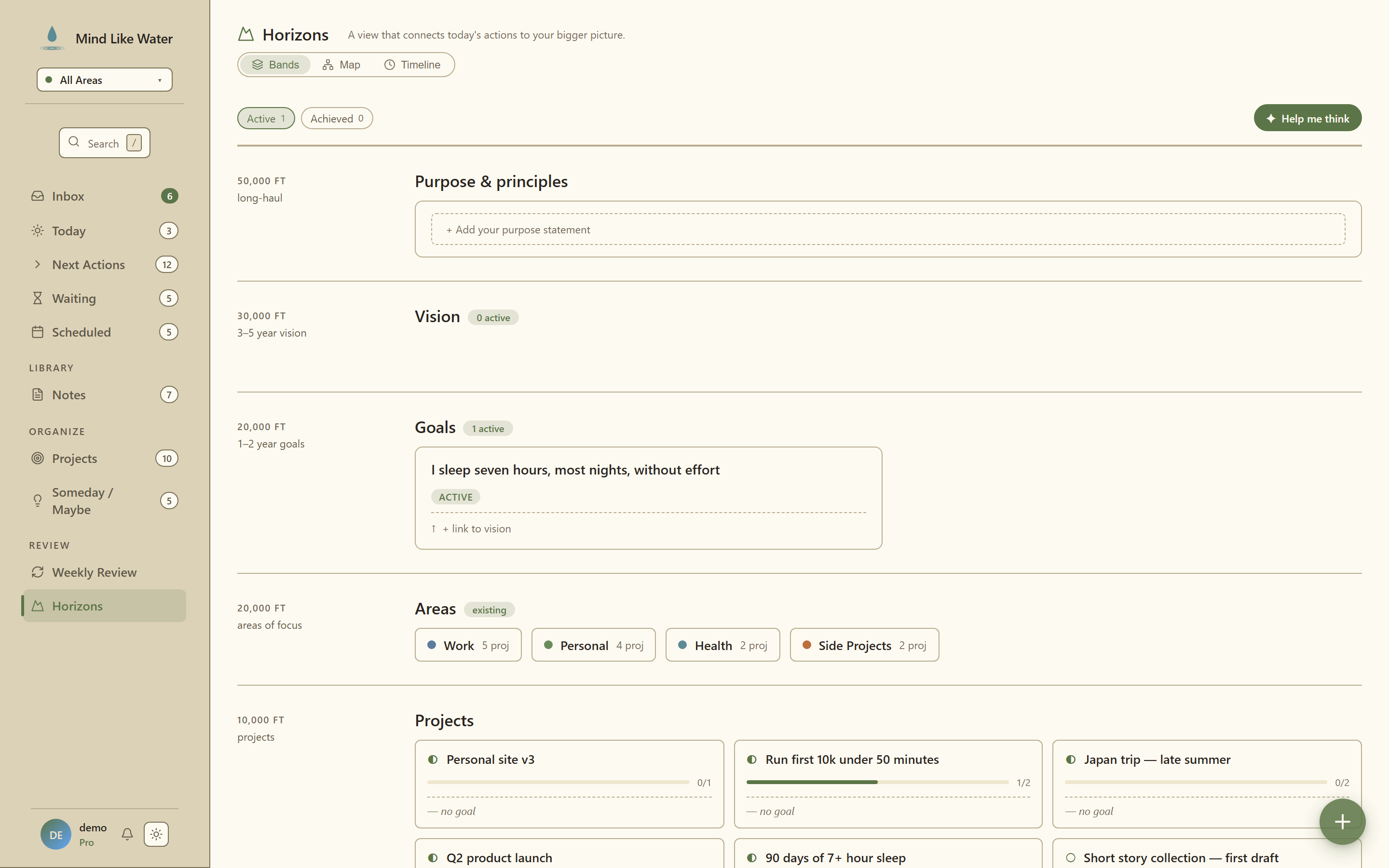
The upper three altitudes of David Allen's GTD model (1–2 year Goals, 3–5 year Vision, and lifetime Purpose & Principles) are now a first-class surface in MLW.
- Sidebar → Review → Horizons, or press
hfrom anywhere outside a text field. - Six altitude bands top-to-bottom: Purpose / Vision / Goals / Areas / Projects / Runway. Click any goal card to spotlight it; connected items light up, unrelated items dim, and the Runway band fills with the actual next actions rolling up to that goal.
- Outcome Focusing is the writing frame, not SMART checklists. "Be a more present father" is a valid goal in Horizons; the placeholder prompt reads "What does success look like?", Allen's exact words.
- First-run starter scaffold so a blank canvas isn't a barrier. Three rows (Goal / Vision / Purpose) each paired with click-to-fill suggestion chips in Allen's outcome voice.
- Map view in addition to the bands. A top-down hierarchy that fans Purpose down through Visions, Goals, and Projects, with each Goal chip-linked to its Area of Focus.
- Timeline (archive) preserves every goal you've achieved, every vision you've retired, every moment you've pinned. The
📌 Pin this momentbutton stamps the current state into the Timeline without waiting for a status change.
AI outcome-phrasing assistance (Pro)
Three small AI affordances help you phrase Horizons entries in Allen's outcome voice. Pro-gated; free users see an inline hint rather than a hard error.
- ✦ Reword as outcome. Three click-to-replace alternatives for any goal/vision/purpose draft, tuned to altitude.
- ✦ Suggest a window. Three target-window phrasings in different shapes (calendar-anchored, qualitative-state, dimensional-stretch).
- ✦ Help me think. A right-side drawer that walks you through Allen's Natural Planning Model on a single goal, one question at a time, then summarizes and saves the notes with the goal.
May 2026: Quality-of-life updates
- Mobile long-press reorder. Press and hold a task for half a second to pick it up, then drag to reorder. Works in Today, Next Actions, and inside Project Detail (including dragging across status sections to change a task's status). Auto-scroll near the screen edges; cancel by lifting your finger.
- Floating capture button on every view. Bottom-right
+button expands to Voice / Note / Task, with Task closest to your thumb. Hides automatically when the soft keyboard is up. - Per-view density toggle. Compact / Normal / Comfortable, picked independently for each list view. Compact hides the meta row entirely for max-rows-per-screen scanning.
- Inbox: File and continue. When you finish clarifying an inbox task and click File and continue, the detail pane advances to the next remaining inbox task automatically. Triage flow doesn't get interrupted by a blank workspace.
- Calendar: hide duplicate events. Settings → Calendar → Display preferences → Hide duplicate events across calendars. On by default; collapses the same event appearing on multiple subscribed calendars.
- Projects: actionable health filters. Two health-state chips on the Projects page (⚠ Stalled and 📅 Due) that you can click to filter. Mutually exclusive; counts reflect your current Area / search scope.
- Projects: convert to tasks. Project ⋯ menu → Convert to tasks unlinks every task and keeps them as standalones. For when you realize the "project" was really just two or three loose actions.
- Projects: drag-into-Waiting prompts for a person; drag-into-Scheduled prompts for a date. No more landing in Waiting without a
@whotag or in Scheduled with a meaningless "today" start_date. - Email capture modes. Three choices for how forwarded email bodies get captured: body in task notes (default), just the subject, or task plus a linked note with rich formatting. Settings → Profile → Email capture mode.
- Notes: wikilinks auto-update on rename. Rename a note and every
[[Old Title]]reference in other notes' bodies rewrites itself to[[New Title]]. Same behavior as Obsidian. - Notes: foldable headings. Click the chevron next to any heading to collapse what's under it.
- Notes: add, rename, or delete tags inline. Hover any tag in the tree to reveal three small icons:
+to add a sub-tag, a pencil to rename, and a trash to delete. No detour through Settings. - Notes: auto-select the top note. Switching into Notes list mode immediately opens the most recently updated note in the detail pane.
- Tags: emoji auto-suggest + inline picker. Create a tag and MLW suggests an emoji based on the name (
#meeting→ 📅,#travel→ ✈️). Click the emoji on any tree row to change it. - Filter chips wrap instead of horizontal-scrolling on narrow windows, so you always see every chip.
- Star / unstar from any list view with a click or
v. No detour through the detail pane. - New-task position preference. Settings → Preferences → New task position picks whether captures land at the top (Things-style, default) or the bottom (classic). Hold Shift while pressing Enter to flip the default for one capture.
- Keyboard: Delete and Insert in list views. Delete deletes the selected task with confirm; Insert opens Quick Capture.
April 2026: Calendar integration
Connect your Google Calendar and see today's meetings on the Today view.
- Connect from Settings → Calendar. One-click OAuth round-trip. Read-only; MLW can see your events and your list of calendars, but can never add, edit, or delete anything in your calendar.
- Compact event strip on Today. All-day events on the first row, timed events below with one-click join buttons for Zoom / Meet / Teams / Webex links. Smart wrap to a second row only on heavy meeting days.
- "Free time" indicator at the right end of the strip. Sums the open windows in your working hours.
- Sub-calendar toggles. Connected accounts show every sub-calendar (Work / Personal / Family / Holidays / shared cals). Flip the ones you want to see, hide the noise.
- Auto-sync every 10 minutes. New events you create in Google appear in MLW shortly after. Hit the refresh button on your account in Settings to sync immediately.
- Press
mto hide the strip on Today, for users who only want it sometimes. Same key brings it back. - iCloud / Outlook / Proton workaround. Subscribe non-Google calendars to your Google Calendar, and MLW picks them up automatically.
April 2026: Time on tasks + duration filter
Tasks can now carry an optional time and a duration estimate.
- Time on the Due chip in DetailPane. When a date is set, you can also pick a time ("Apr 28 · 3 PM"). Useful for hard deadlines like "doctor at 3pm" without putting them on your calendar.
- Estimate chip. Mark how long a task usually takes (5m / 15m / 30m / 45m / 1h / 2h presets, or any custom value). Renders as a small
30mpill in task lists. - Capture syntax. Quick Capture (
n) understands~30min,[15m],~1has duration estimates, and bare times like3pmor9 AMas due times. SoDoctor 3pm tomorrow ~30minlands fully populated. - Time filter chip on Today + Next Actions. New "⏱" chip in the chip rail with
≤5m / ≤15m / ≤30m / ≤45m / ≤1h / ≥1hpresets. Answers the classic GTD question ("I have 15 minutes before my meeting, what fits?") in one click. - Press
,min DetailPane to open the Estimate picker. (mfor "minutes.")
April 2026: Reminders
Reminders for any task. Fires through the in-app inbox, your email, or as a push notification on your devices.
- Set on any task. Open a task and click
+ Remind me(or pressr). Pick a preset time or custom date+time. Choose channels: in-app inbox, email, push. - Quiet hours. During quiet hours, email reminders are deferred until your day starts. The in-app inbox is silent regardless.
- Push notifications. OS-level notifications on desktop, Android, and iPhone (after installing MLW to your home screen). Click the Push channel in the reminder picker; the first time, MLW will ask your browser for permission.
- Inbox bell. Press
banywhere to open the notifications inbox sheet to see fired reminders, snooze, or mark done. - Morning digest. Optional opt-in: a single calm email at 7am with everything committed for today. Off by default, enable in Settings → Notifications.
- Waiting follow-ups. Gentle nudges when you've been waiting on someone for more than a week.
- Weekly review nudge. Sunday afternoon reminder to do your weekly review.
April 2026: Voice capture
Press Shift+N to dictate a task, note, or stream-of-consciousness brain dump. Whisper transcribes, Claude extracts structured tasks for you to review before saving. Reflective content gets appended to today's Daily Page.
April 2026: Email capture
Every account has a private email address that turns inbound emails into Inbox tasks. Find it at Settings → Profile → Email capture.
- Email anything to that address → it lands in your Inbox as a task
- Start the subject line with
n:→ it becomes a note instead - The Settings page has a Regenerate address button if the address ever leaks
Useful for filing flight confirmations, "follow up later" threads, or anything you want out of your inbox and into your trusted system.
April 2026: Notes inbox + nested tags
- Notes inbox. Notes captured without an area or project land in Inbox alongside tasks for later triage. Same intent-at-capture flow as tasks.
- Nested tags. Tags can have sub-tags (
#meetings/standups). The Notes view has a tag tree on the side; drag to reorganize, drag a note onto a tag to add it.