
Appearance
Reminders
Reminders fire at a specific time on any task. Per-task reminders are the main mechanic; you can also opt into rhythm-based nudges (morning digest, waiting follow-ups, weekly review).
Setting a reminder on a task
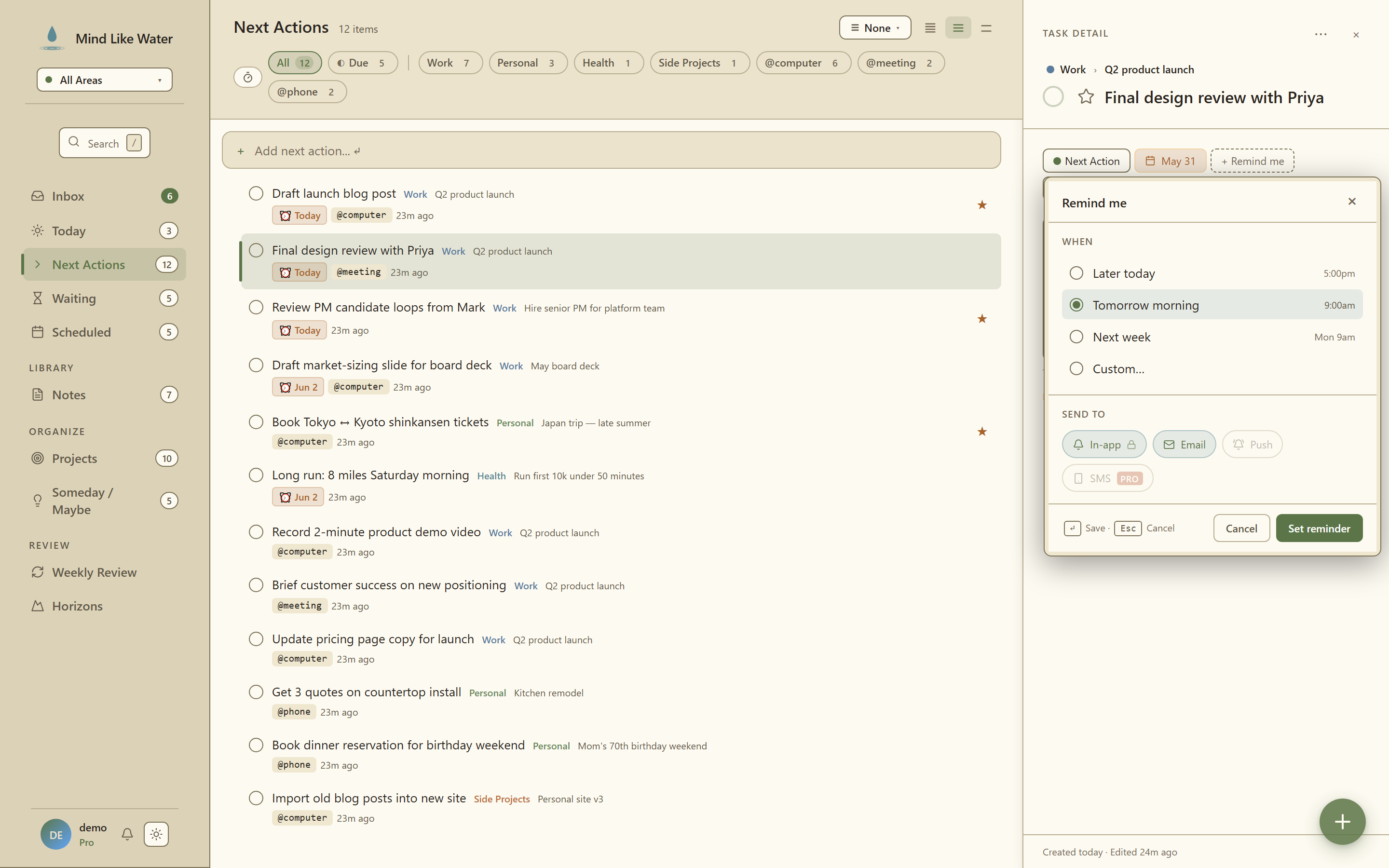 The Remind me picker: When (Later today / Tomorrow morning / Next week / Custom) and Send to (In-app, Email, Push, SMS Pro).
- Select the task
- Press
r(or click the+ Remind mechip in the detail pane) - Pick when: Later today / Tomorrow morning / Next week / Custom date+time
- Pick channels: in-app inbox, email, push (SMS coming later)
- Click Set reminder
The reminder shows up in the task's detail pane below the chip row, with edit and clear icons. Multiple reminders per task are allowed.
When the time fires:
- In-app. Lands in your notifications inbox (open with
b). - Email. Sent to the address on your account; subject carries the task title and a Done / Snooze action link.
- Push. OS-level notification on whatever device you registered.
The notifications inbox
Press b anywhere to open the inbox sheet. It shows fired reminders, waiting-follow-up nudges, and any system notifications. Unread items have a teal accent. Mark done, snooze, or click into the underlying task.
Channels
In Settings → Notifications:
- Send reminder emails. Master switch. When off, reminders only show in the in-app inbox.
- Single reminders. The reminders you set on individual tasks. On by default.
- Morning digest. A single calm email at 7am with everything committed for today. Off by default; opt in.
- Waiting follow-ups. Gentle nudges when you've been waiting on someone for more than a week. On by default.
- Weekly review. Sunday afternoon nudge to do your weekly review. On by default.
Quiet hours
Set a daily quiet window in Settings → Notifications (defaults 11:00 PM to 7:00 AM). During quiet hours, email reminders are deferred until your day starts. Push notifications still fire at the time set; the in-app inbox is silent regardless of quiet hours. Reminders just appear there without interruption.
The timezone is whatever's on your profile.
Push notifications
Real OS-level notifications. Works on:
- Desktop browsers. Chrome, Firefox, Edge, Brave, Safari (latest).
- Android. Chrome / Edge / Brave.
- iPhone. Safari, after you install MLW to your home screen.
To enable on a device, click the Push channel chip when setting a reminder. The first time, MLW will ask the browser for notification permission. Choose Allow, and the chip stays selected. From then on, push works on that device.
You can also enable / disable from Settings → Notifications → Push reminders on this device.
If push is grayed out:
- "Notifications are blocked." You previously denied permission. Re-enable in your browser's site settings, then refresh the page.
- "Install MLW to your home screen first" (iPhone). Safari → Share → Add to Home Screen, then open MLW from the home-screen icon.
- "Push not available in dev mode." Only relevant if you're a developer running MLW locally.
Recurring reminders
Reminders themselves don't repeat (a reminder fires once and resolves). If you want the task to repeat (and a fresh reminder to fire on each instance), use the task's Repeat chip (,r in detail pane). Recurring tasks can have a default reminder offset; each new instance of the task automatically gets its own reminder.
Email reminder format
The email subject carries the task title. No MLW branding clutter. The body is tight: when, the task, optional notes, and three action buttons:
- ✓ Done. Completes the task, marks the reminder fired.
- ⏰ Snooze. Pushes it to later today / tomorrow morning / next week.
- Reply with your update. For waiting-follow-up emails specifically.
Action links work without logging in (signed tokens), so done/snooze just work from your phone's mail app.
Keyboard shortcuts
| Shortcut | Action |
|---|---|
r | Open the reminder picker for the selected task |
b | Open the notifications inbox sheet |
Esc (in picker) | Cancel without saving |
Enter (in picker) | Save the reminder |
What MLW doesn't do (yet)
- SMS reminders. Pro tier feature, coming in a later phase.
- Per-channel quiet-hours overrides. Quiet hours apply to email only right now.
- Location-based reminders. Not on the roadmap; calendar + time covers most use cases.
Common questions
How do I set a reminder on a task?
Select the task and press r (or click the + Remind me chip in the detail pane). Pick a preset time or custom date+time, choose channels (in-app, email, push), and click Set reminder.
How do I enable push notifications?
When you set a reminder, click the Push channel chip. The first time, MLW will ask your browser for notification permission. Choose Allow. From then on, push works on that device. You can also enable from Settings → Notifications.
Why are some reminders not arriving by email?
Check Settings → Notifications. The "Send reminder emails" master toggle controls all reminder email; sub-toggles control specific types. If you're in quiet hours, email reminders are deferred until your day starts.
Can I have reminders repeat?
Reminders themselves don't repeat (they fire once and resolve). For a recurring reminder, set the task itself to repeat. Each new instance of the task gets a fresh reminder automatically.
What's the morning digest?
An optional opt-in email at 7am summarizing everything committed for today. Off by default; enable in Settings → Notifications.
Can I snooze a reminder?
Yes. Snooze options appear in the email reminder (Done / Snooze later today / Snooze tomorrow / Snooze next week) and in the in-app inbox sheet (b).
Related
- Quick Capture. Capture a task and set a reminder in one flow.
- Inbox. Where the notification bell drops fired-but-not-dealt-with reminders.
- Calendar. For time-specific meetings; reminders are for everything else.