
Appearance
Time & duration on tasks
Two related properties (due time and estimated duration), plus a filter that lets you answer the classic GTD question "I have 15 minutes before my meeting, what fits?" in one click.
Both fields are optional. A task with no time and no estimate works exactly the way it always has.
Due time
When a task has a date, you can also pin a time of day to it.
- Where to set it. Open a task, click the Due chip, and pick a date as usual. Underneath the date row there's a time editor. Type
3pm,15:00, or pick from the suggestions. - How it displays. The Due chip reads
Apr 28 · 3 PMinstead of justApr 28. List rows show the same compact form. - What it's for. Hard time-of-day commitments that don't deserve a calendar event. "Doctor at 3pm," "leave for the airport at 6," "pick up Aiden at 3:15." Anything you'd otherwise put on a sticky note next to your monitor.
Due time isn't a reminder. To get notified, set a reminder on the task. The two are independent.
Estimated duration
Mark how long a task usually takes. The estimate becomes a small chip on the row and feeds the time filter.
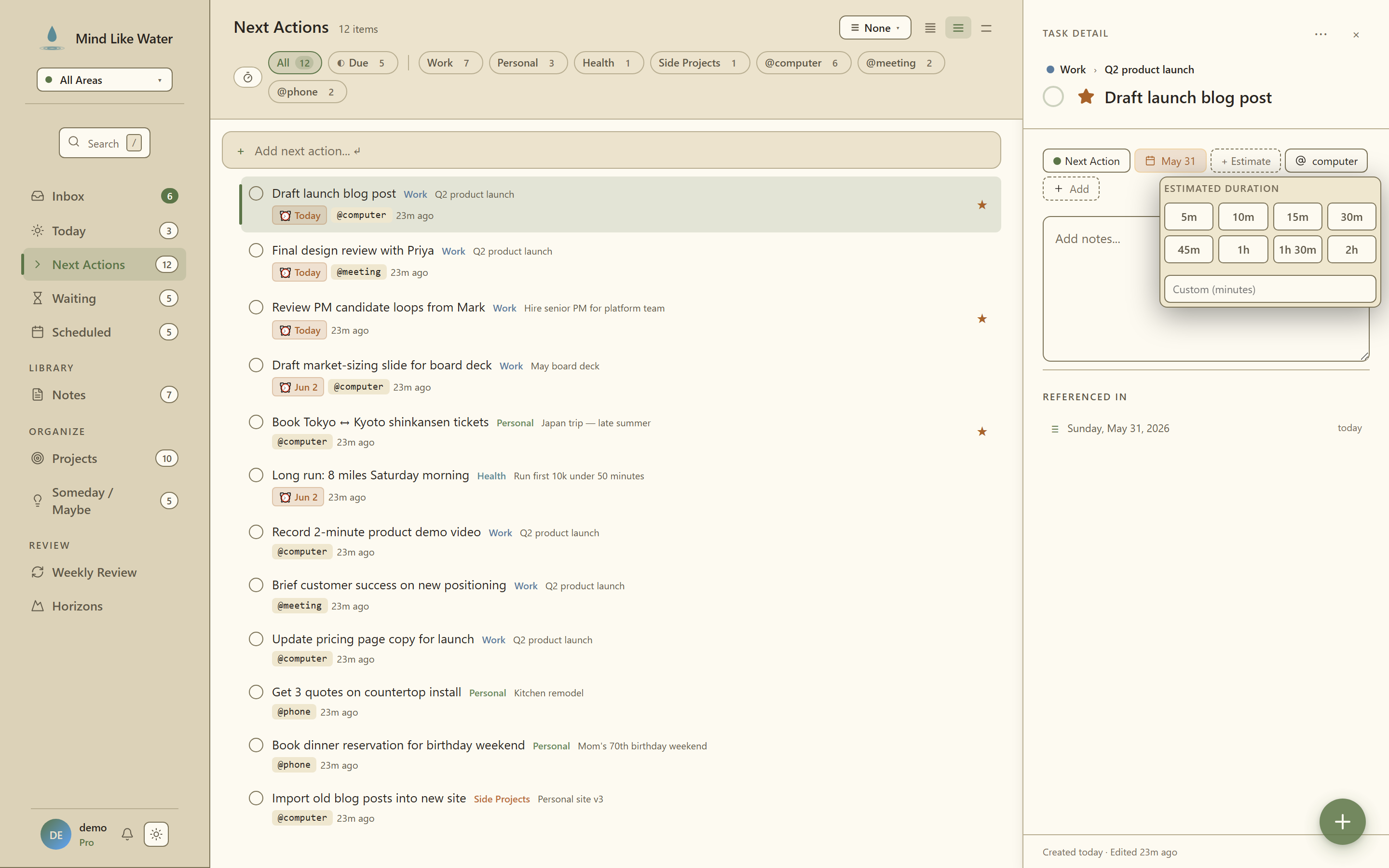 The Estimate picker: preset duration chips plus a Custom (minutes) field.
- Where to set it. Open a task and find the Estimate chip in the chip rail (or use
, m, mnemonic: minutes, for the keyboard shortcut). The picker shows a grid of presets (5m / 10m / 15m / 30m / 45m / 1h / 1h 30m / 2h), plus a Custom field for anything else. - How it displays. A small
30mpill on the task row, sized to match the other meta chips. - What it's for. Honest planning. You don't need to estimate every task, just the ones whose size you genuinely know. Even rough estimates (5/15/30/60) make the time filter useful.
Capture syntax
Quick Capture (n) understands time and duration inline, so you can drop a fully-populated task without touching a single chip:
| You type | What MLW parses |
|---|---|
Doctor 3pm tomorrow | Title "Doctor", due tomorrow at 3 PM |
Standup 9 AM | Title "Standup", due today (or next workday) at 9 AM |
Renew passport ~30min | Title "Renew passport", estimated duration 30 min |
Triage inbox [15m] | Title "Triage inbox", estimated duration 15 min |
Doctor 3pm tomorrow ~30min | All three at once |
Both bracket forms (~30min and [15m]) work. Bare times like 3pm, 15:00, 9 AM get treated as a due time; ~Nmin / [Nm] / ~Nh get treated as a duration.
The time filter: "what fits in 15 minutes?"
On Today and Next Actions, the chip rail has a duration filter (⏱) pinned to the left.
- Presets:
≤5m / ≤15m / ≤30m / ≤45m / ≤1h / ≥1h(six buckets) - Toggle: "Also show unestimated tasks". Off by default. With this off, tasks without an estimate are hidden so the filter answers exactly "what could I finish in N minutes." With it on, the filter relaxes to "anything estimated at ≤N minutes, plus everything else."
The chip has a stable width so toggling it on/off doesn't shift the rest of the chip rail.
Combine with other filters to slice further: ⏱ ≤15m + Personal area + @phone, exactly the calls you can knock out before your next meeting.
Tips
- Estimate the ones you know. Don't try to estimate everything. Even just having
5m / 15m / 30mon the calls and admin tasks makes the time filter genuinely useful. - Capture-syntax beats chip-picks. If your hands are already typing,
Doctor 3pm ~30minis one motion. Reaching for the Estimate chip is two. - Time on the Due chip ≠ a reminder. They're different surfaces. The Due time is just metadata so you remember; reminders are what actually buzz your phone.